


ACH Positive Pay User Guide
Overview
Thank you for choosing Southwest National Bank’s ACH Positive Pay. We are pleased to provide this service as an important fraud control measure.
ACH Positive Pay provides protection against unauthorized or fraudulent electronic transactions. It offers the ability to manage all ACH debits posting to an account via rules, filters, and blocks.
The Positive Pay application contains the following functionality:
ACH Positive Pay Rule Management
Transaction filters and blocks
Access to daily exceptions
Online reporting
Please Note: Some of the following screenshots were provided by our vendor. Colors will differ within the application as they have been customized to match our institution.
All stop payment requests will still need to be submitted through Online Banking.
User Login
Access to the Positive Pay system is done via Southwest National Bank’s Online Banking service using SSO (Single Sign On) functionality.
- Log in to Online Banking
- Click on Transactions - left side of the screen
- Select Positive Pay
Exception Processing - Quick Exception Processing
Exceptions can be answers from the Online Banking site or from the full Posiive Pay site. Both are efficient methods of managing exception item activity. Pay and return decisions can be made on all items via a single screen.
Exception items must be decisions by 12:00 PM CST each business day. Items not decisioned by this time, will auto-decision to the defaul of Return. All authorized users will be notified by email once exceptions have been released and are ready to be answers. A reminder email will be sent, 60 minutes prior to the cutoff time, if there are remaining exceptions that have not been decisioned.
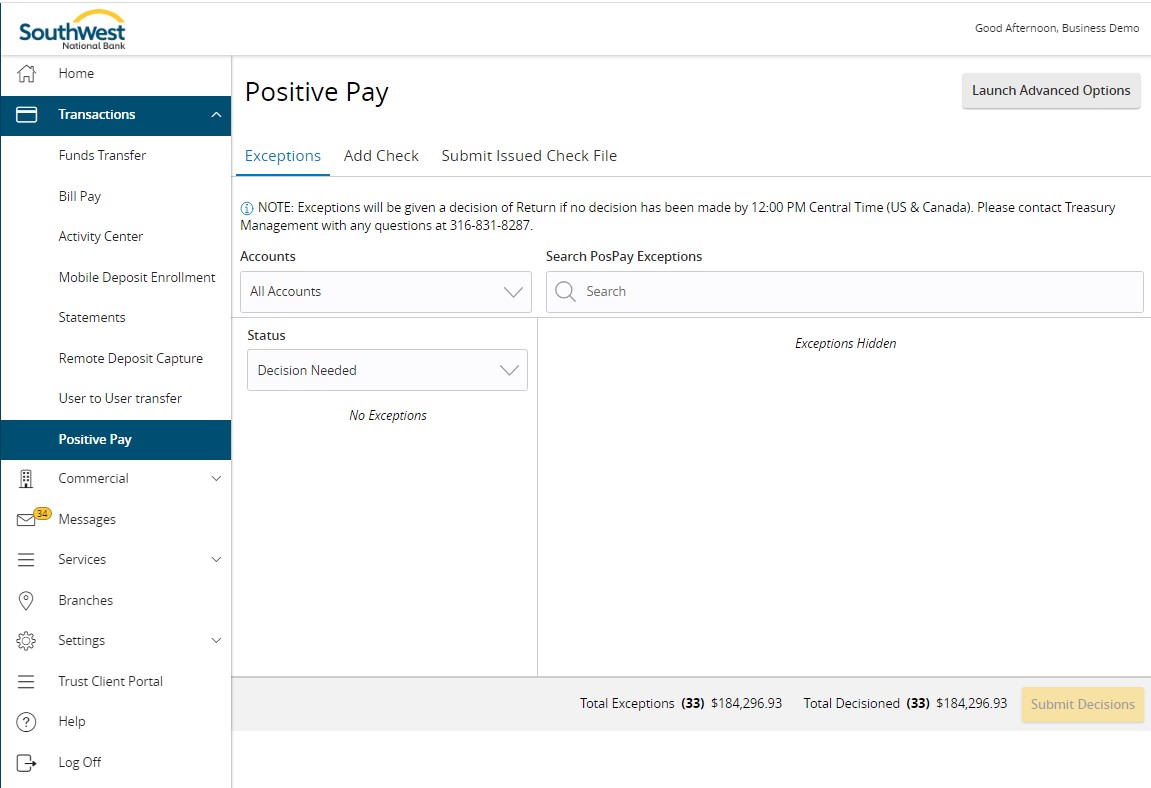
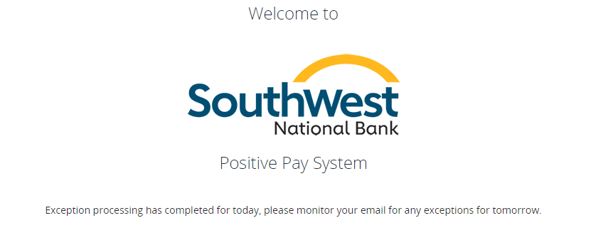
Click the Launch Advanced Options button to visit the full Positive Pay site. Selecting this option will take the user directly into the system without the need to use additional login credentials. The following page will display with a full list of option on the left side of the screen.
Header Icons
The header options at the top of the screen give options to enhance or change the system functionality.

| The Toggle Icon will collapse or epxand the System Menu on the left side of the screen. |

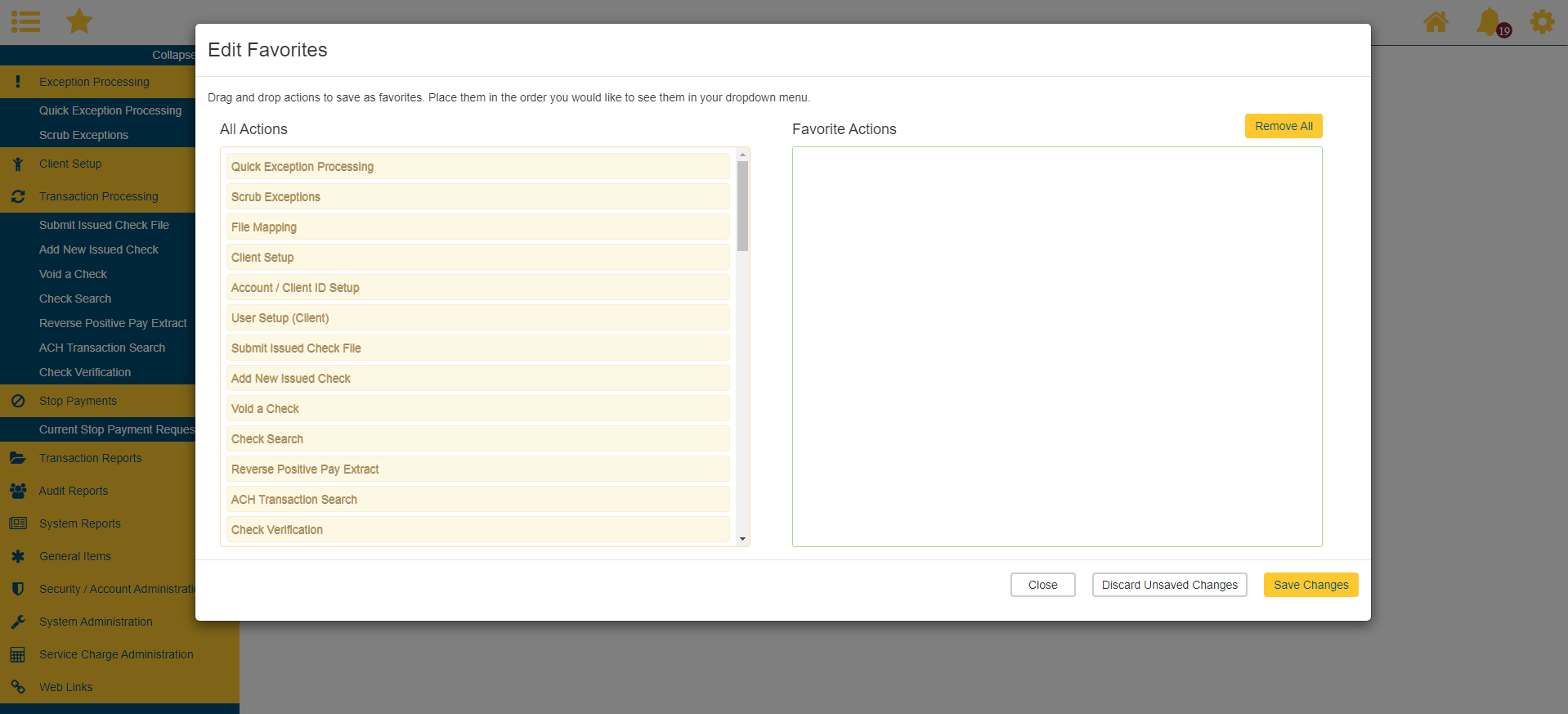
| The Favorite icon will allow a list of favorite actions to be created and saved for future use. |
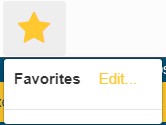
| Click Edit to open a dialog box to select favorite actions for the logged in users. |

| The Home icon is used to return to the home spalsh screen. |

| The Help icon is used to open a help document for the current action screen. |

| The Notifications icon will show if there are messages for the currenty user. |

| The Account icon has the following option: Log Out |